
First, a note on "Parent" and "Subsidiary"
In most use cases where a financial consolidation is being performed, there's a legal parent entity that owns (partially or wholly) one or more subsidiary entities. JustConsolidate adopts these same terms — "Parent" and "Subsidiary" — but from a financial consolidation perspective, not a legal one.
Here's the distinction: JustConsolidate expects you to create a new, dedicated entity that serves as your consolidation parent. Your existing entities — including what you might think of as the legal parent — all become subsidiaries from JustConsolidate's perspective.
Example:
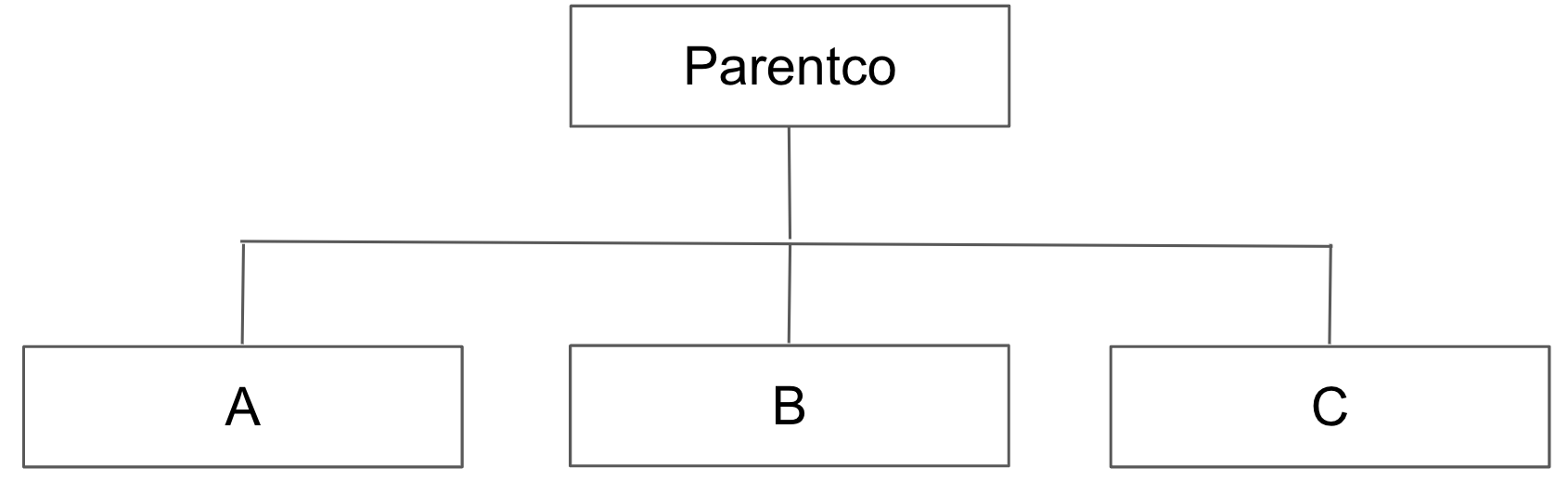
Entity A is the legal parent of two wholly-owned subsidiaries, Entity B and Entity C, and each entity has its own set of accounting records or books. To use JustConsolidate, you'd first create a new, empty entity in your respective accounting platform (let's call it ParentCo) to act as your financial consolidation parent. In JustConsolidate, the Role for ParentCo is the Parent, and the Roles for Entity A, B, and C is Subsidiary. ParentCo will hold the consolidated financials of A, B and C.
Another way to think about this; Entities A, B, and C are your subsidiary ledgers, and ParentCo is your consolidation ledger.
Subscription requirements
For QuickBooks Online users
|
For Xero users
Because your consolidation organization should be a brand new, empty organization, this is usually true automatically. If you are repurposing an existing organization that already has tracking categories set up, there is flexibility in the category mapping workflow to manage this scenario. |
How to connect your entities
Connecting your entities is handled entirely through your accounting platform's own secure authorization process — there's no manual data entry on your part. A few clicks and you're ready to move on to chart-of-accounts mapping.
- Click the Add button and follow the authorization prompts.
- Once all your entities are listed, click Set as Consolidation Parent in the Role column of the entity that will serve as your consolidation entity. All other entities default to subsidiary.
For Xero users Set up your consolidation entity’s chart of accounts before you connect it. Xero does not allow manual journals to post to certain account types, so it needs to be built with that in mind from the start. See Setting up your Xero consolidation entity. |
Entity settings explained
After connecting, each entity appears in the display table with several configurable and informational fields:
Role — Indicates whether an entity is, from a consolidation perspective, the Parent or a Subsidiary (reference earlier discussion on distinction between Consolidation Parent and legal parent). You set this using the "Set as Consolidation Parent" link. If you need to reset which entity is the Parent, remove the entity that is currently listed as the Parent then add it back.
Consolidation Alias (optional) — An alternate display name used for a subsidiary when consolidation entries are posted to the parent. This lets you keep the full legal name intact in your accounting platform while using a cleaner or segment-friendly name in your consolidated reporting.
Consolidation % — Defaults to 100% (the equity method). For proportional consolidation, enter your ownership percentage (up to two decimal places). All consolidation workflows — including the opening balance sheet — will apply this percentage to the trial balance before posting.
Entity Name — Pulled automatically when you connect an entity and cached thereafter, since this metadata rarely changes. If the name, currency, or first period of transaction changes in your accounting platform, click the green refresh icon to re-sync. Refreshing metadata does not affect your COA mappings or financials.
Entity ID — The unique identifier your accounting platform assigns to each entity (think of it as a fingerprint). When JustConsolidate posts consolidation journal entries, this identifier is included in the entry's name, which makes it easy to search for specific entries later.
| Platform | What the identifier is called | Where it appears on the entry |
| QuickBooks Online | Realm ID | Journal entry name field |
| Xero | Tenant ID | Manual journal narration field |
First Entry — For subsidiaries, this is the first period of transaction detected when the entity was connected (or last refreshed). For the Parent, this field stays blank unless you've designated an opening balance sheet period. See the Opening Balance Sheet workflow.
Connection Status — Normally shows Connected. If the authorization breaks or times out, the status will switch to Disconnected and a Re-authorize link will appear. Click it to restore the connection before running any workflows.